|
The Beginner's Guide: Installing OpenTTD

OK, it's time to download the game, and install it.
Downloading OpenTTD
-
You can download OpenTTD from the OpenTTD web site. Make sure you
download the package for the operating system you are using. For Windows users, the Windows installer package is the one you want.
This guide will assume you are using the Windows installer. See below for notes for other operating systems.
-
When the download has completed, double-click on the installer icon (eg, openttd-1.0.3-win32.exe). Click "Next" until you get
to the Choose Components screen. You'll need to tick the Download OpenGFX, Download OpenSFX and Download OpenMSX
boxes:
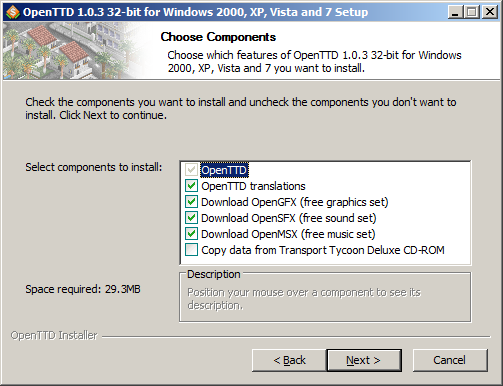
By doing this, the OpenTTD setup program will automatically download the latest graphics and sound for the game. If you already own
the original TTD, you can choose the "Copy data from Transport Tycoon Deluxe CD-ROM" option instead to have the original graphics integrated into the
game - if so, the next screen will ask you to point out your original game installation location. This option is no longer necessary, though, so
don't worry if you don't have the original game.
-
Setup will then ask you where you want to install the game. Generally, the defaults can be accepted fine from here on. Carry on pressing
Next until the Setup program finishes.
-
Congratulations! You have installed OpenTTD! You can now click on the OpenTTD icon in your Start menu, or on your Desktop if you chose to
add an icon there, to play the game.
I've got OpenTTD installed, how do I play?
That's not something I can cover in this guide, unfortunately! The rest of my web site however features various hints and tips regarding
the likes of rail building, plus many other tips and tricks. Also, don't forget about the detailed
OpenTTD wiki, which has tutorials, reference guides, and lots more. If you continue
to have trouble, feel free to then post a message on the Transport Tycoon Forums.
If you're posting about an OpenTTD issue, make sure you put your message in one of the OpenTTD forums!
Have fun!
Notes about installing on other operating systems
The OpenTTD wiki contains details on how to install the game on a variety of
platforms, including Windows, Mac OS X and Linux. Click here to
visit the Installation guide.
|